K2 Quick Start Guide
Hello! This guide will help you get started with the TooBeFun K2 quickly
01. Product Overview
K2 is a smart keyboard with a 4x4 layout of 16 keys and two endless knobs. Its components are shown below
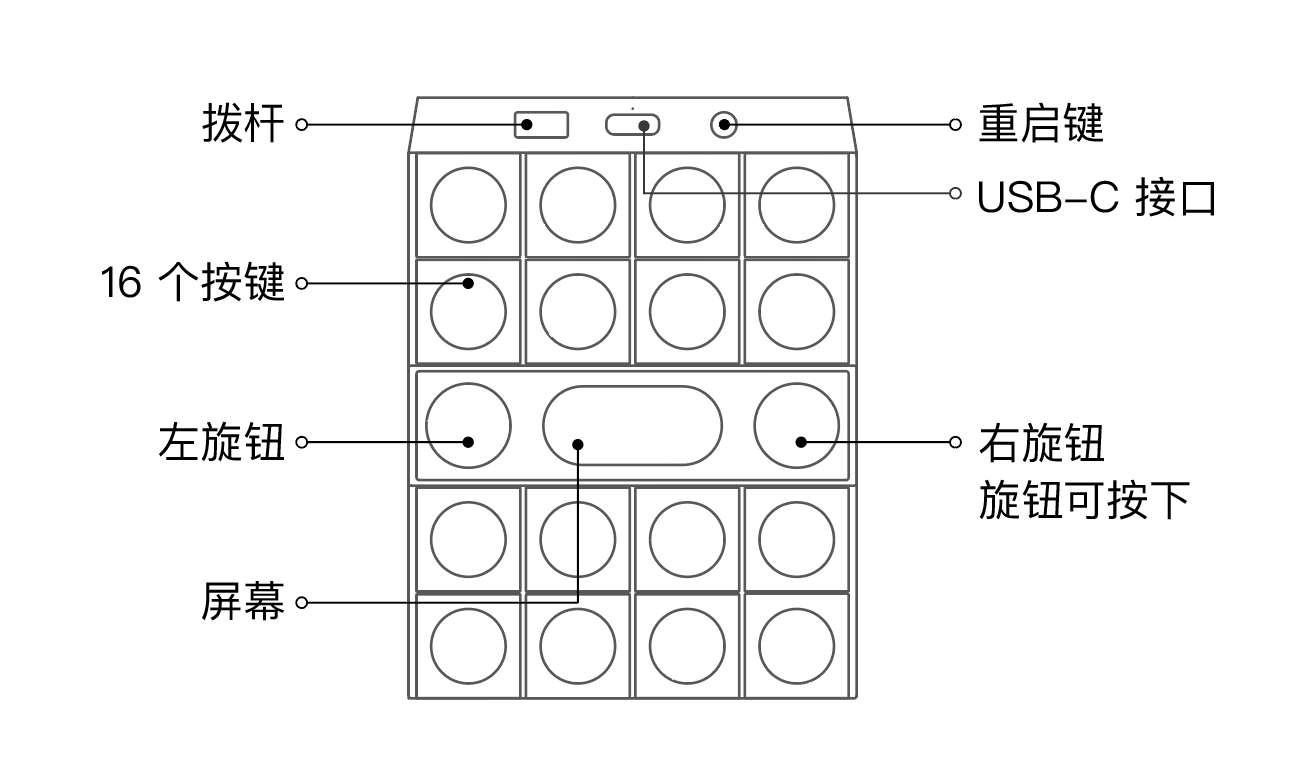
- For first-time use, please charge via a USB-C cable. Input voltage: 5V
- After charging, slide the toggle switch to the right to power on. The screen lights up after powering on. The screen turns off automatically after 3 minutes of inactivity, and the device enters sleep mode after 1 hour of inactivity
- After powering on, the menu appears by default. The factory preset includes 4 apps as shown below: "Numpad", "Game", "Calculator", and "Drum Pad". Turn the left knob to switch between apps, then press any key to enter the selected app

- At any time, long-press the left knob to return to the menu
02. Using the "Numpad"
A dual-mode keyboard with a nine-grid number layout. You can customize the key layout and key mappings via the K2 Web Driver
- In the menu, turn the left knob to switch to NUM
- Press any key to enter the "Numpad". The default key mappings are as follows:
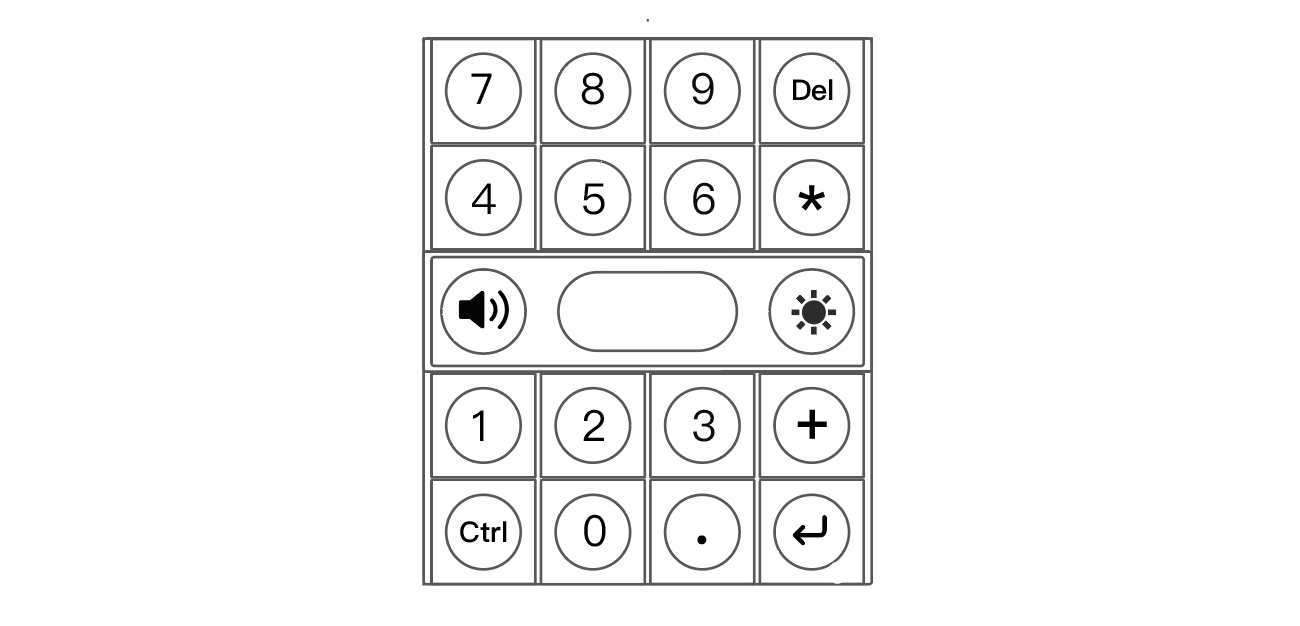
- Press the right knob to toggle between Bluetooth and wired connection
- Wired connection: Press the right knob to switch to USB, then connect K2 to your computer via USB-C
- Bluetooth connection: Press the right knob to switch to BLE, then search for and connect to the TooBeFun K2 Bluetooth device on your computer. Long-press the right knob to reset Bluetooth and re-pair
- After holding a key for one second, the screen displays an animation scene. You can design your own animated expressions using the K2 Forge and flash them to the device via the K2 Web Driver
03. Using the "Game"
Press any key to make the rabbit jump, dodge ghosts, and achieve a higher score
- In the menu, turn the left knob to switch to JUMP
- Press any key to enter the "Game"
- During the game, press any key to make the rabbit jump
- After hitting a ghost, press any key to restart the game
04. Using the "Calculator"
The calculator supports simple arithmetic operations as well as various function calculations
- In the menu, turn the left knob to switch to CALC
- Press any key to enter the "Calculator". Each key's function is as follows:
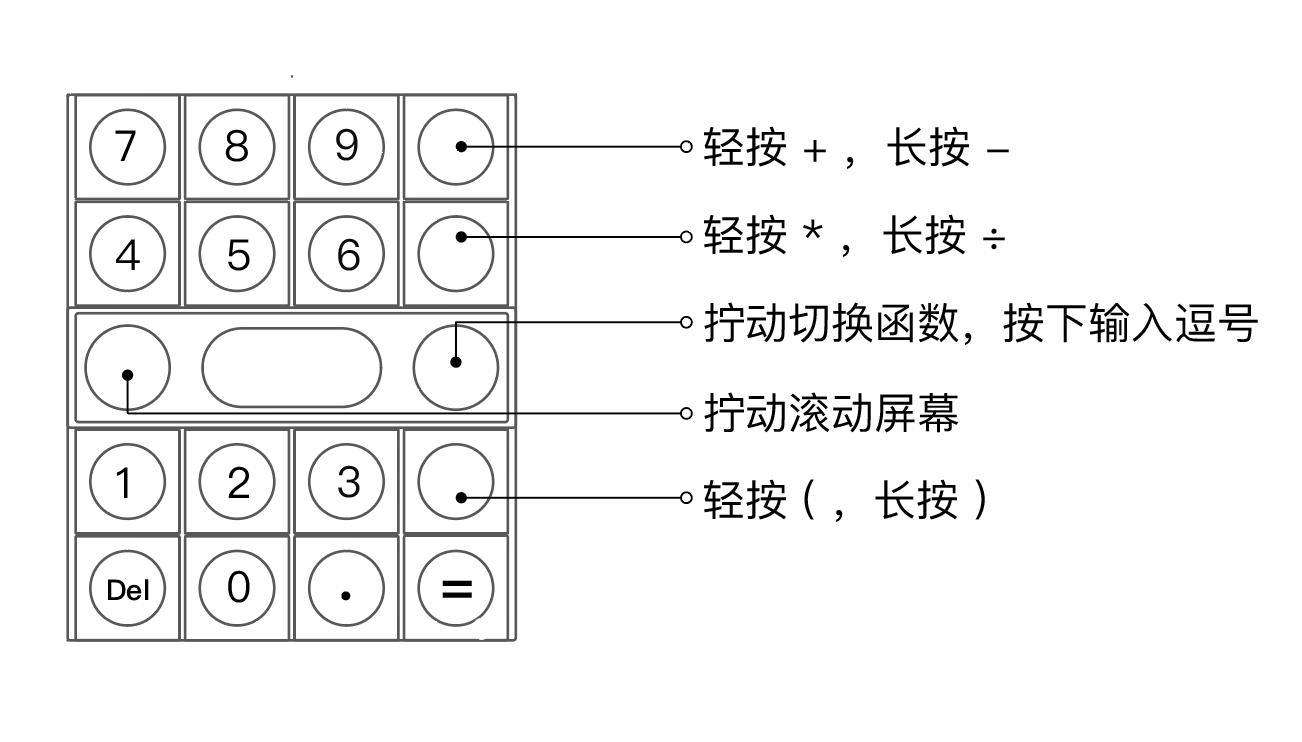
- Arithmetic example: Press 3, +, 9, = in sequence. The screen displays the result 12. Press Del to delete the result, or long-press Del to clear everything
- Function example: Turn the right knob clockwise to switch to SUM (summation). Then press 1, comma, 5, comma, 6, = in sequence. The screen displays the result 12 — the sum of 1, 5, and 6
- Factory preset functions include SUM (summation), POW (power), AVG (average), SQ (square), and SIN (sine of an angle). You can also write custom functions via scripts using the K2 Web Driver
05. Using the "Drum Pad"
A 16-pad drum pad with 2 customizable knobs. USB-C wired connection only
- In the menu, turn the left knob to switch to MIDI
- Press any key to enter the "Drum Pad"
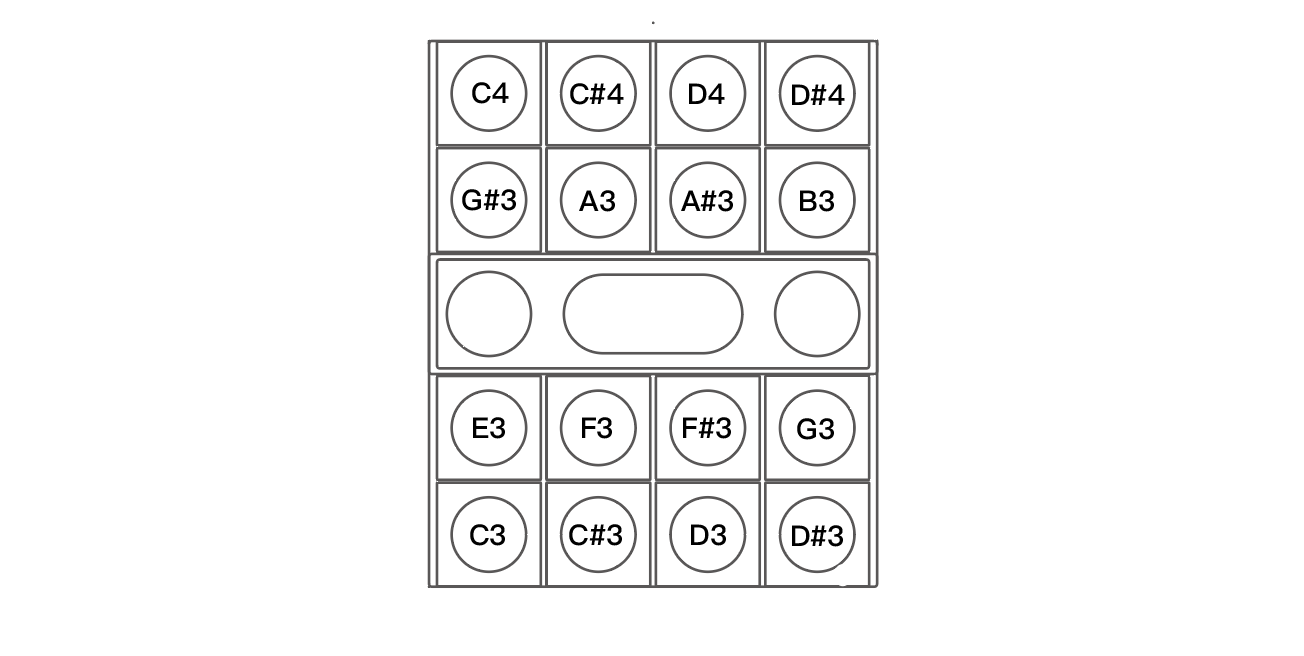
- Notes: As shown below, the bottom-left is C3, increasing by one semitone going right and up. The default MIDI velocity is 98
- Knobs: The left and right knobs can be customized in your DAW using MIDI Learn